Set up in five minutes
No computer and no app download required. You can do every step from your phone.
- 1
Sign in with Google
Sign in with your Google account in one tap. You do not need to create a password or download anything.
- 2
Introduce your business
Enter your business name, sector and booking page language, then publish. You can add your logo if you like.
- 3
Set your hours and services
In Settings, define your working pattern. The calendar creates open slots automatically.
- Separate weekday and weekend hours
- Appointment length from 5 to 480 minutes
- Add staff and let customers choose
- Automatic or manual approval
- 4
Share your link
Use Share to copy your booking page link. Customers tap the link and book.
- Add it to your Instagram bio
- Add it to your WhatsApp profile and status
- Add it to your Google Business profile and website
- Print a QR code for your shop
- 5
Turn on notifications
In the dashboard, open Notifications and tap Enable notifications. You get an alert on your phone the moment a new booking arrives, even if the panel is closed.
On iPhone, first add the dashboard to your Home Screen from Safari’s Share menu, then open it from the home screen icon and enable notifications.
- 6
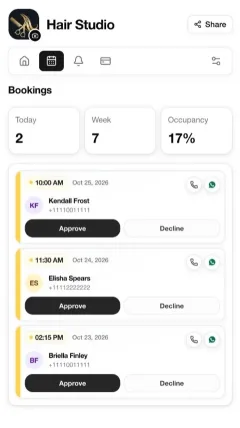
Manage your bookings
Approve or decline requests in one tap. Call or WhatsApp customers from the booking card. Close days on the calendar when you are unavailable.